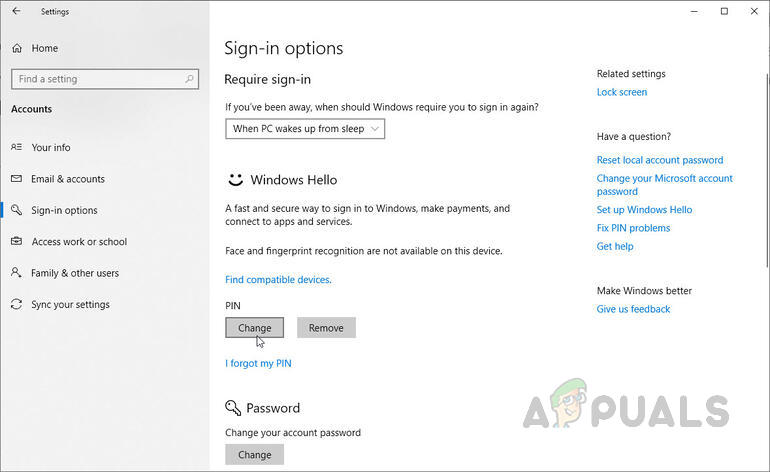
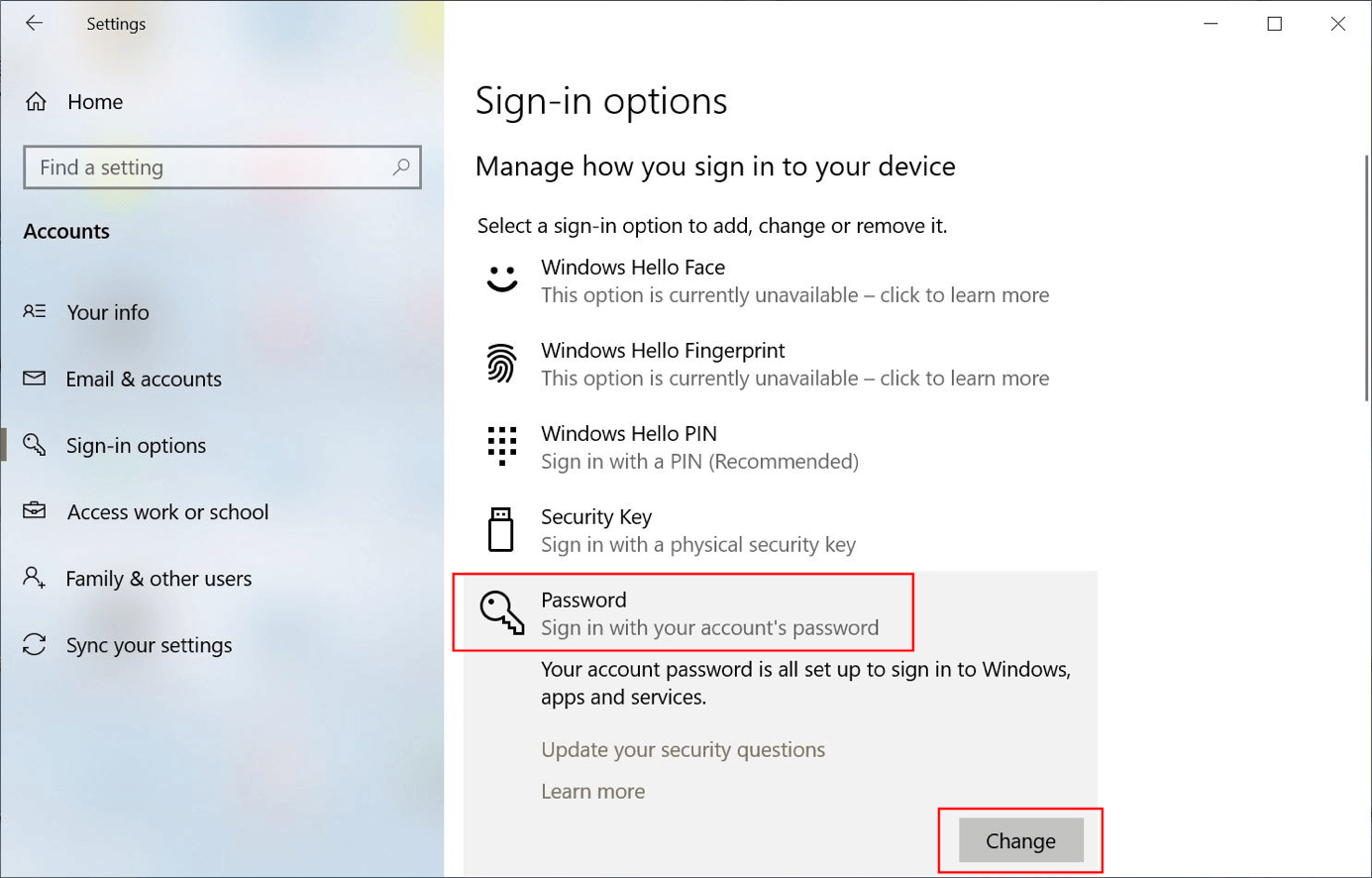
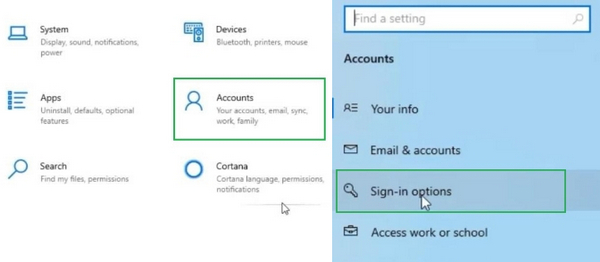
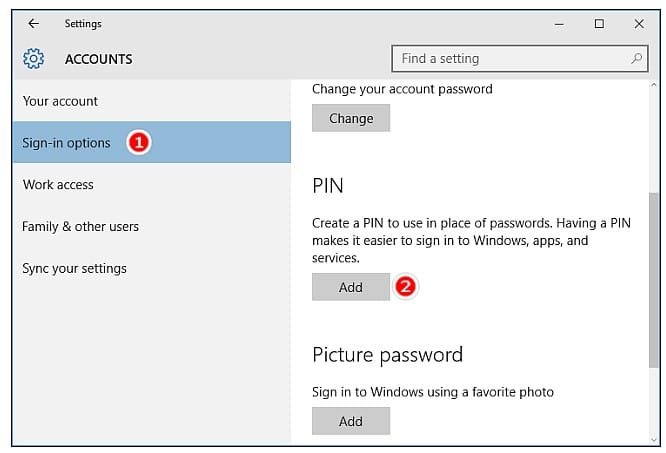
Ways to sign in Use Set up Windows Hello to enable to sign in using face recognition, a fingerprint or a PIN, instead of a password. In this section you can also improve facial recognition or remove it. You can sign in to your account with a physical security key. Learn more. Additional settings Sign in with an external camera or fingerprint reader. If turned on, you disable Enhanced Sign-in ...
Learn how to switch from a PIN to a password in Windows 11 with our simple, step-by-step guide. Enhance your security in just a few easy steps!

Managing sign-in options in Windows 11 is essential for enhancing both security and convenience. Whether you want to switch from a password to a PIN, set up biometric authentication, or modify other sign-in methods, understanding how to navigate these settings ensures a smoother and more secure user experience. With Windows 11, Microsoft has prioritized flexibility, allowing users to customize ...

Why change password sign-in options? If you use a local account (an account stored only on your computer and not connected to Microsofts online services), you can turn off password sign-in.
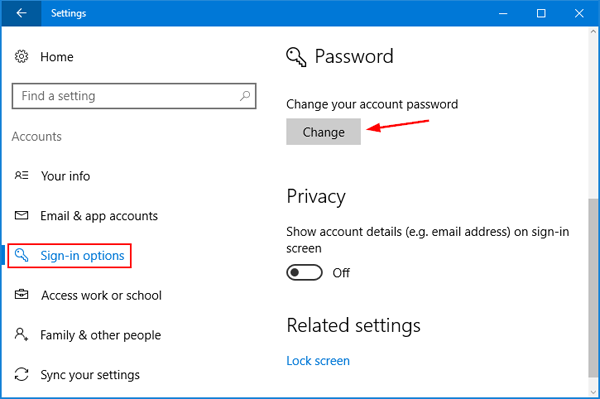
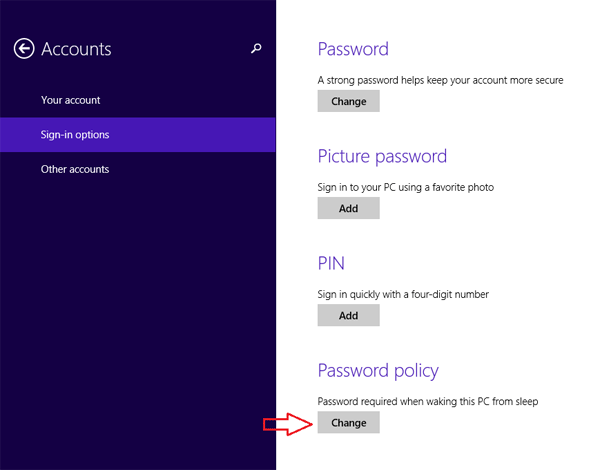
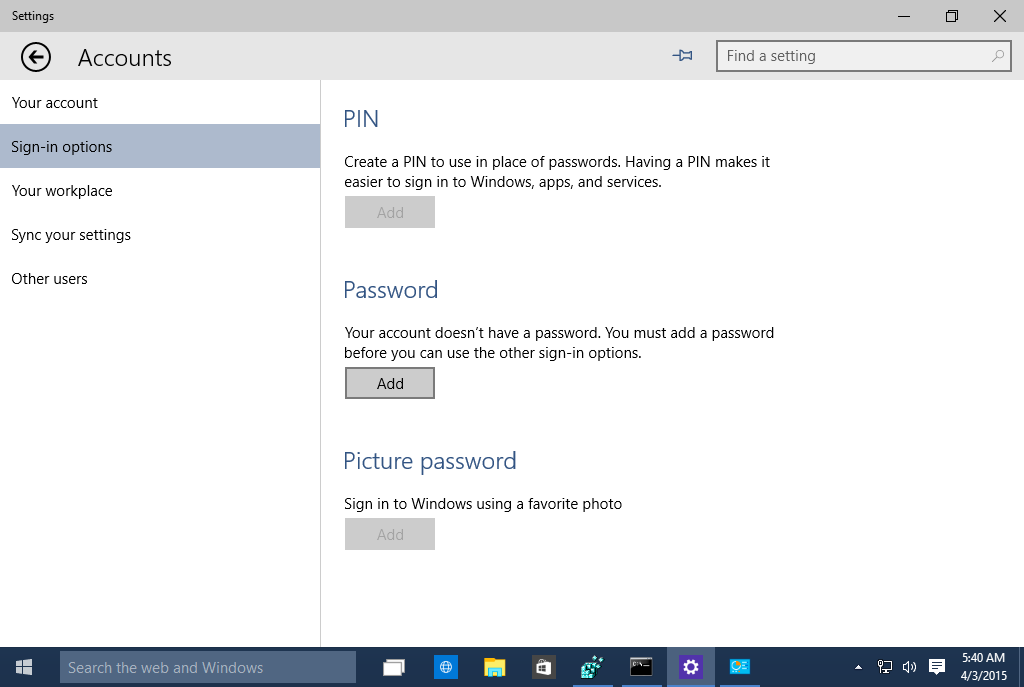
Check for Password Sign-in Option: Upon reopening the sign-in options, you should now see Password as one of the available methods under Ways to sign in. If you wish to use a password, click on Password, then select Add, and follow the instructions to set up your password.




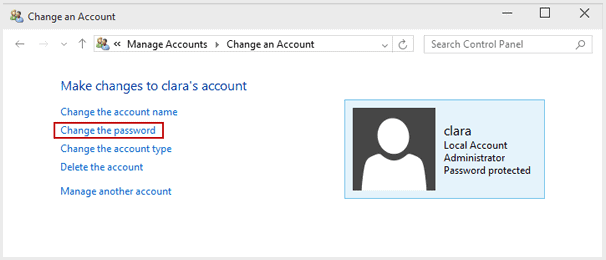

.png?width=1509&height=714&name=image (22).png "Password Recommendations and Information")