Fortunately, most connectivity issues can be resolved with simple troubleshooting steps. In this guide, we'll explore a range of solutions to help you fix Wi-Fi problems in Windows, providing clear and detailed instructions for effective troubleshooting.
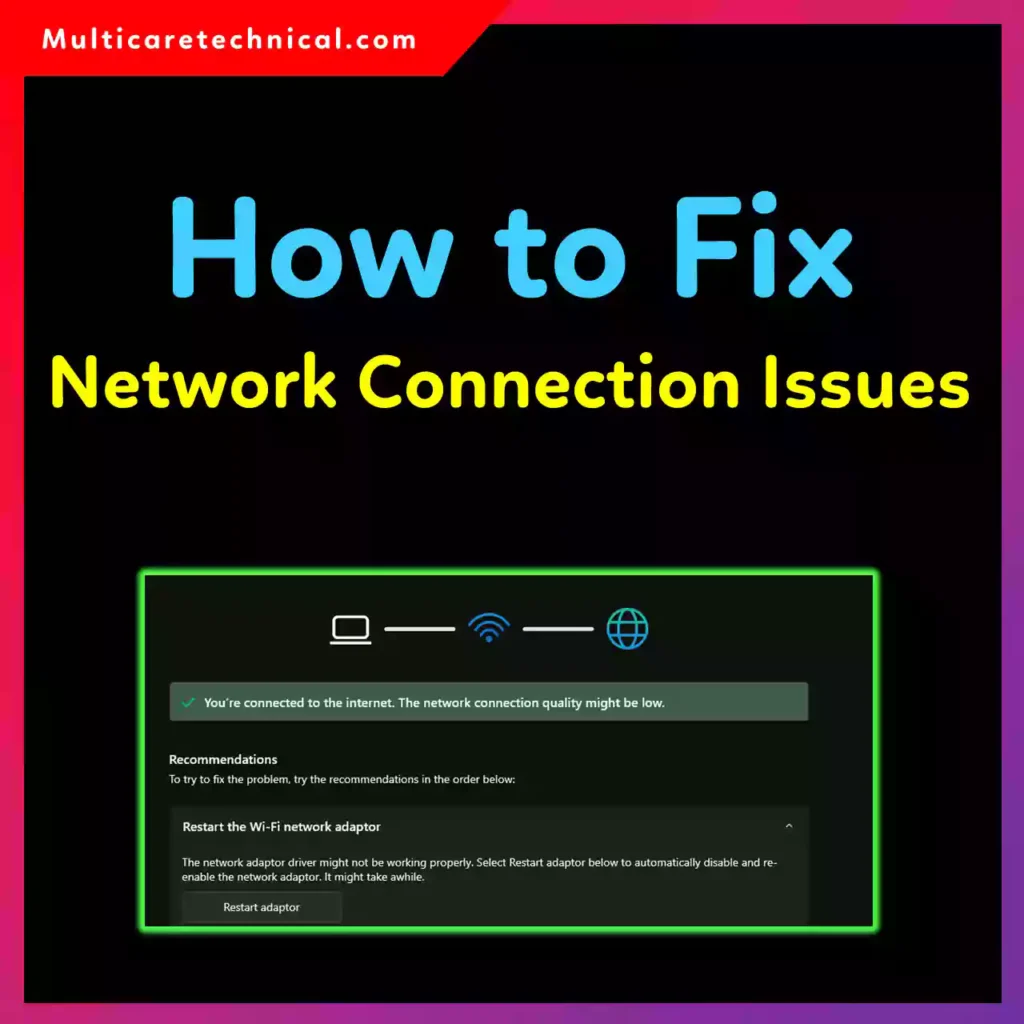
Network connection issues in Windows occur when your computer cant establish or maintain a connection to your router, modem, or internet service provider due to software conflicts, driver problems, or incorrect settings.

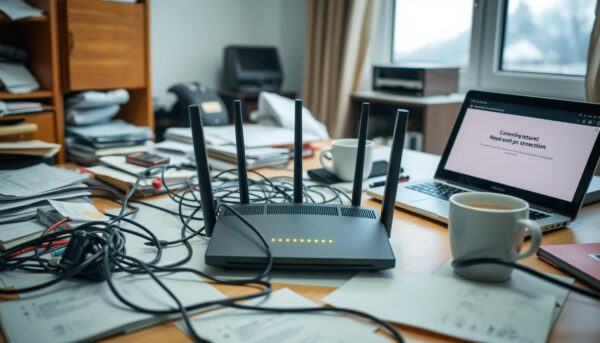
This particular example perfectly highlights why Router Device Connection Issues With Pc is so captivating.
By forgetting the saved WiFi profile, restarting networking components, updating drivers, and resetting the Windows network stack, you can fix the vast majority of Windows cant connect to this network errors in Windows 10 and Windows 11 without reinstalling Windows.

As we can see from the illustration, Router Device Connection Issues With Pc has many fascinating aspects to explore.
This tutorial contains instructions to fix the following issue on Windows 11, 10, 8 or 7 OS: Wi-Fi is connected but Windows displays "No Internet". So, if your device is connected to a Wireless network but you're unable to access the Internet, then read the detailed steps below to solve the problem.
Many older devices with Wi-Fi don't support modern Wi-Fi security connection standards. So unless you have your router set to a backward-compatible security mode, those older devices won't be able to connect. For example, the Nintendo DS (released in 2004) only supports WEP security and not newer standards like WPA or WPA2.