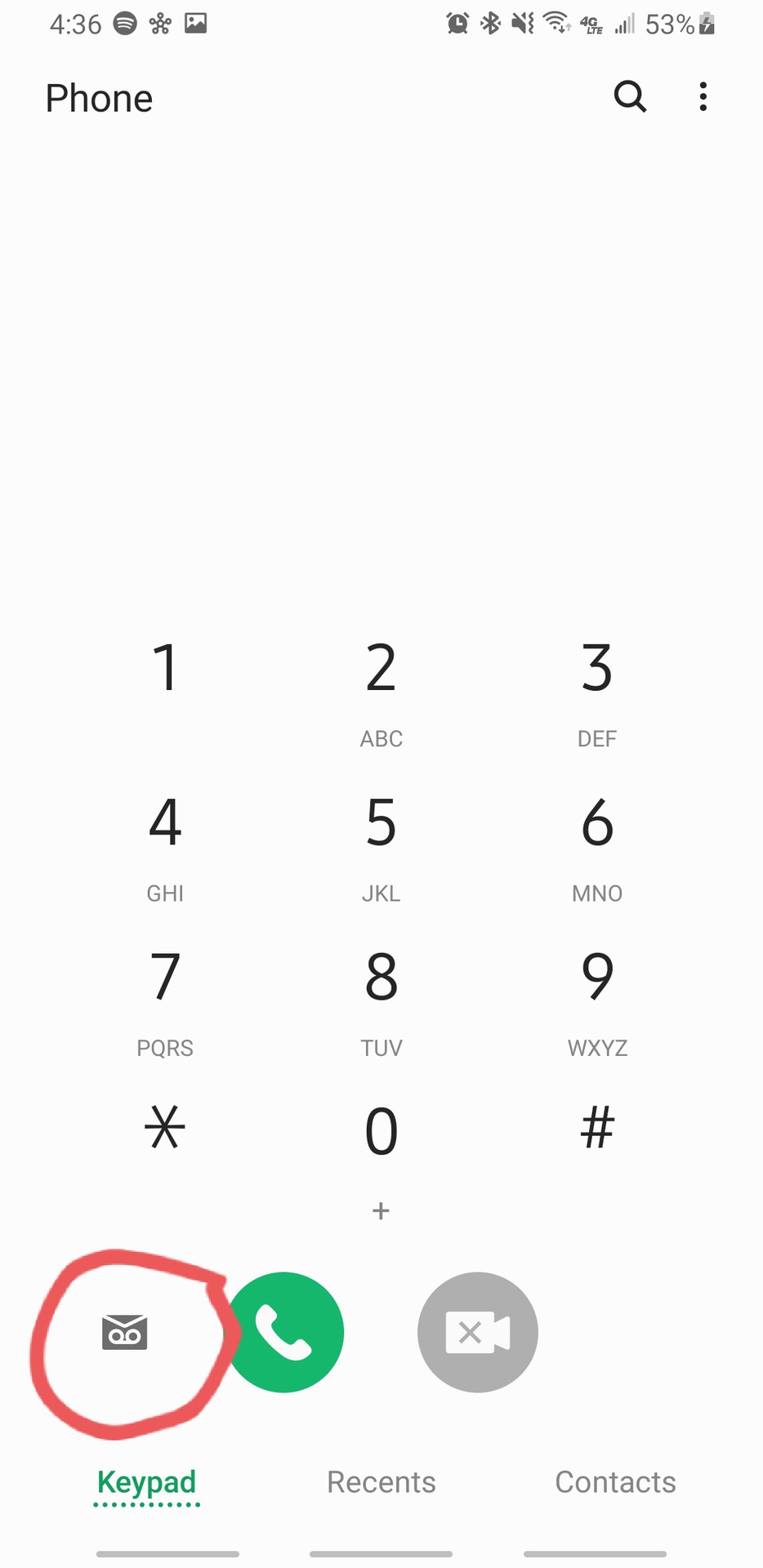
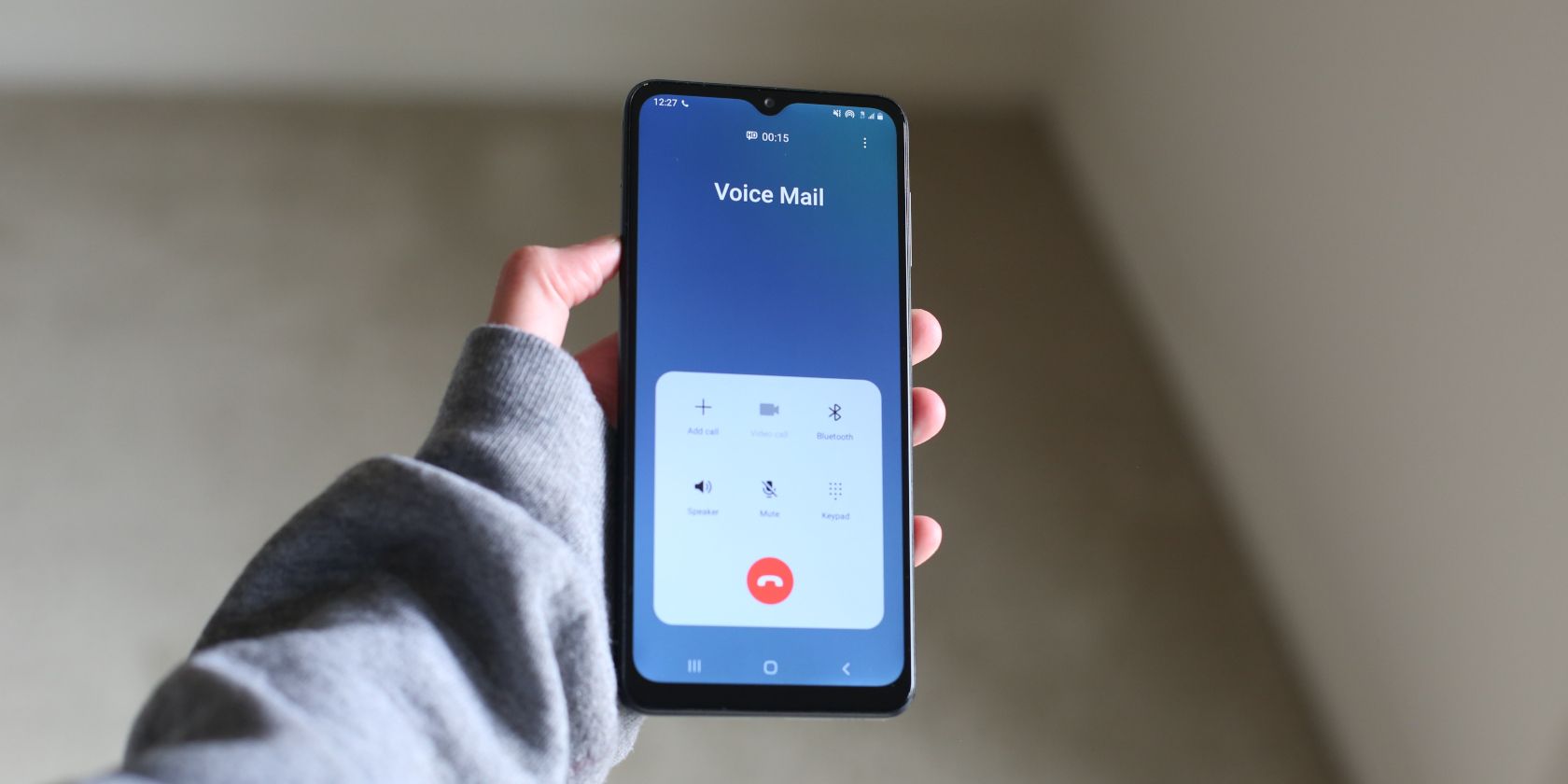
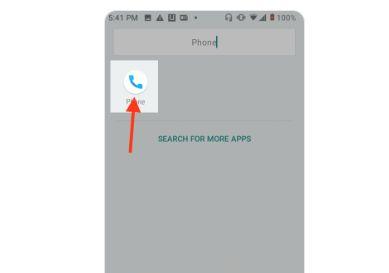
- On some devices, you may see a Voicemail icon instead. It usually has an icon that resembles two circles with a line connecting them at the bottom. ... Follow the setup prompts. When you call your voicemail for the first time, you will hear an automated voice guiding you through the setup process.
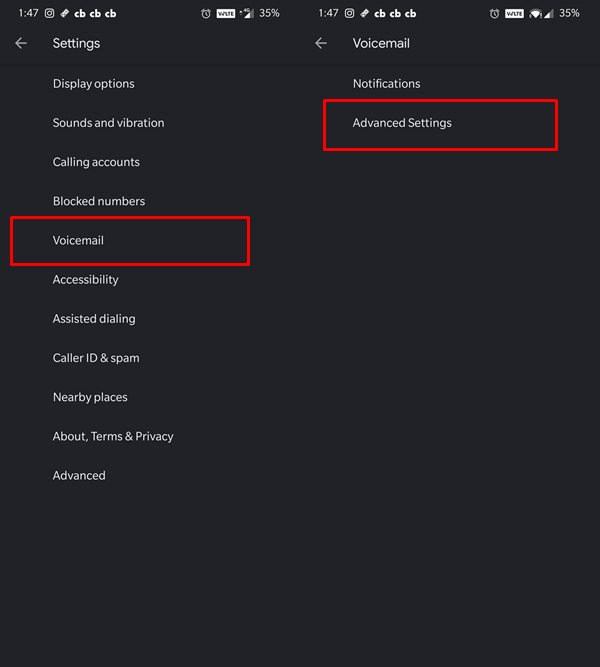
In the "Home" tab, under "Phone settings," click Voicemail. Turn on Call to listen. Enter your PIN. Click Save. Tip: If you forget your PIN, to reset and create a new one, you can follow the steps again.

- Need to set up voicemail on your Android phone? Asurion Experts walk you through how to get your voicemail up and running.

As we can see from the illustration, Voicemail Setup Android 11 Device Steps has many fascinating aspects to explore.
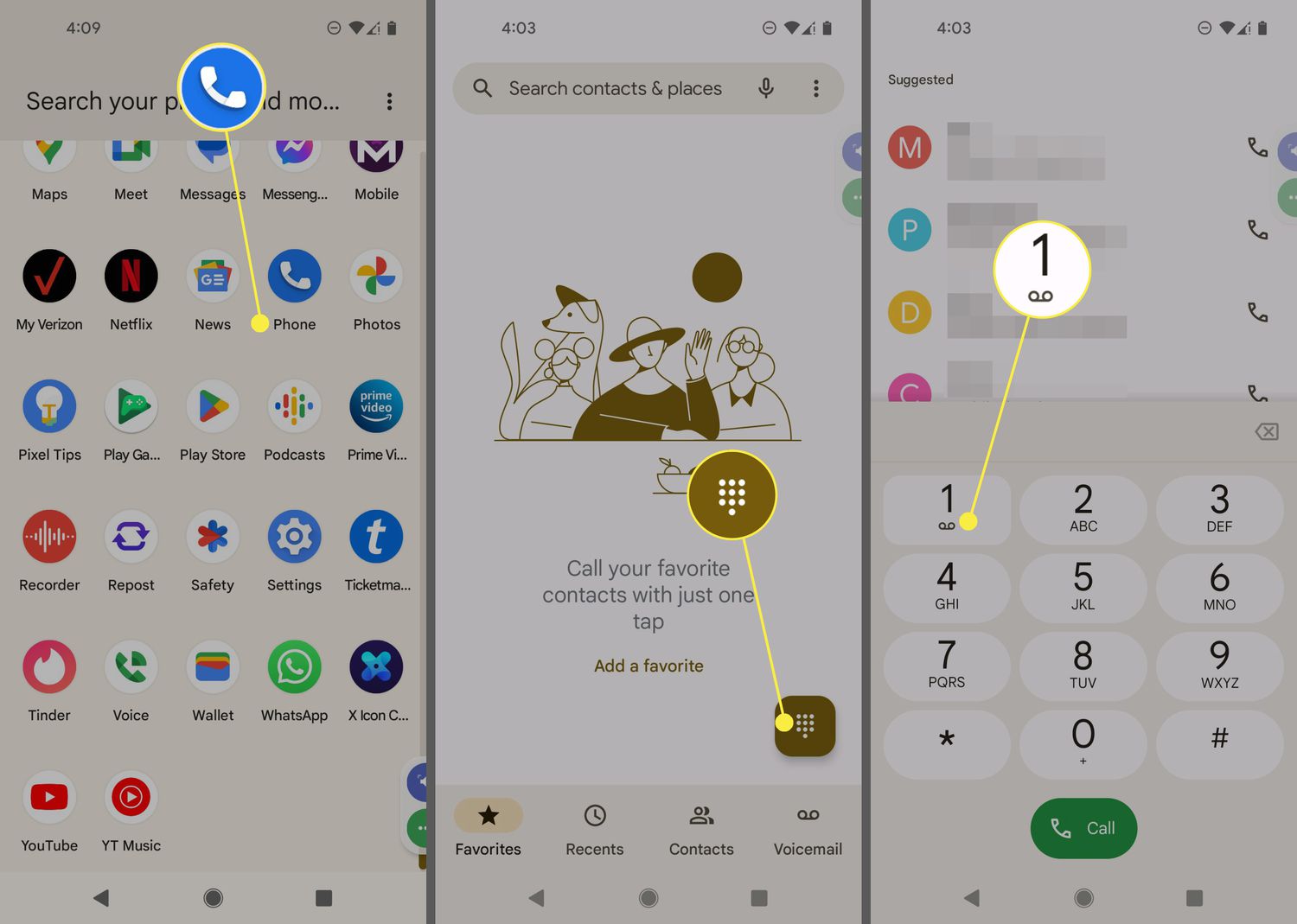
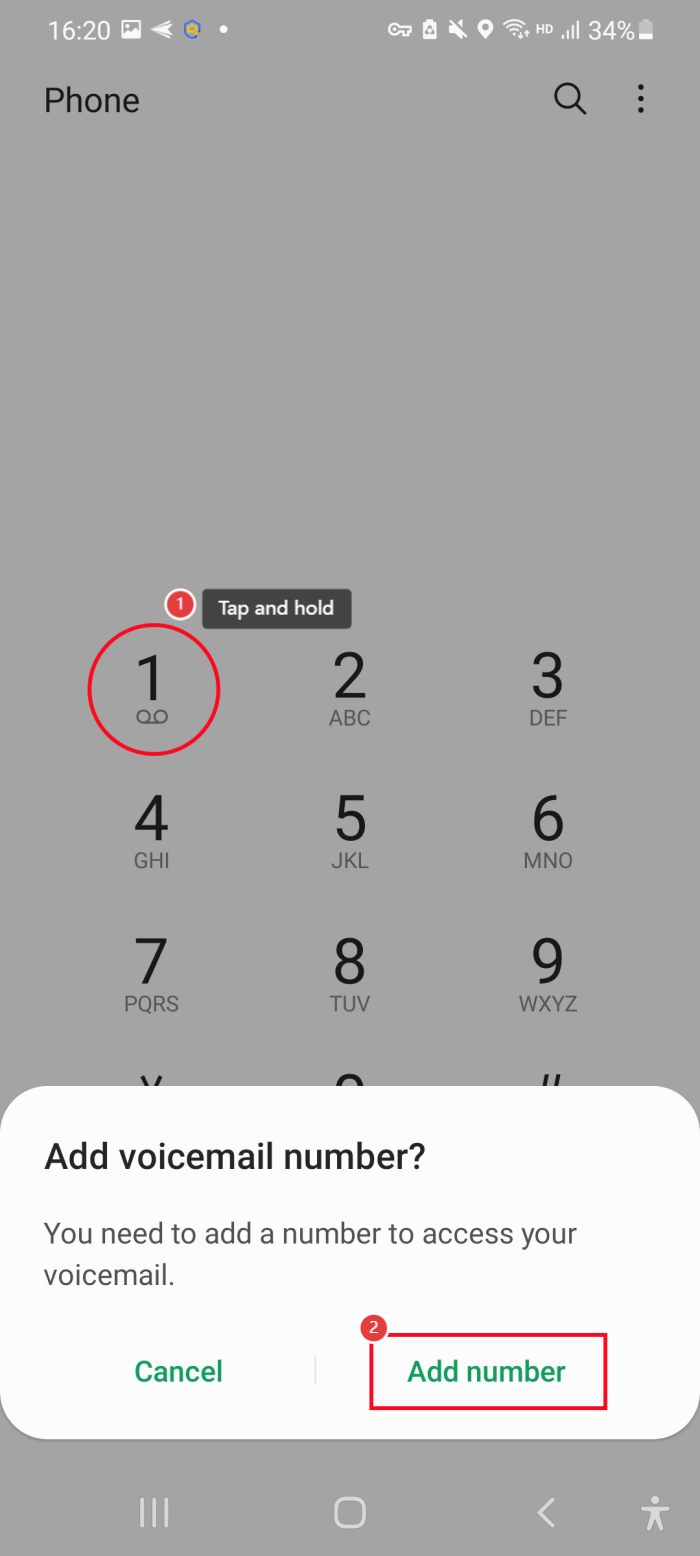
- Here's how to activate voicemail on Android: Step 1.Tap and hold the "1" number on the dial pad. If this step doesn't work for your carrier, please try to dial your own phone number.

As we can see from the illustration, Voicemail Setup Android 11 Device Steps has many fascinating aspects to explore.
- Learn how to set up voicemail on Android in minutes with this simple guide. Get step-by-step instructions to activate, customize and check messages easily.
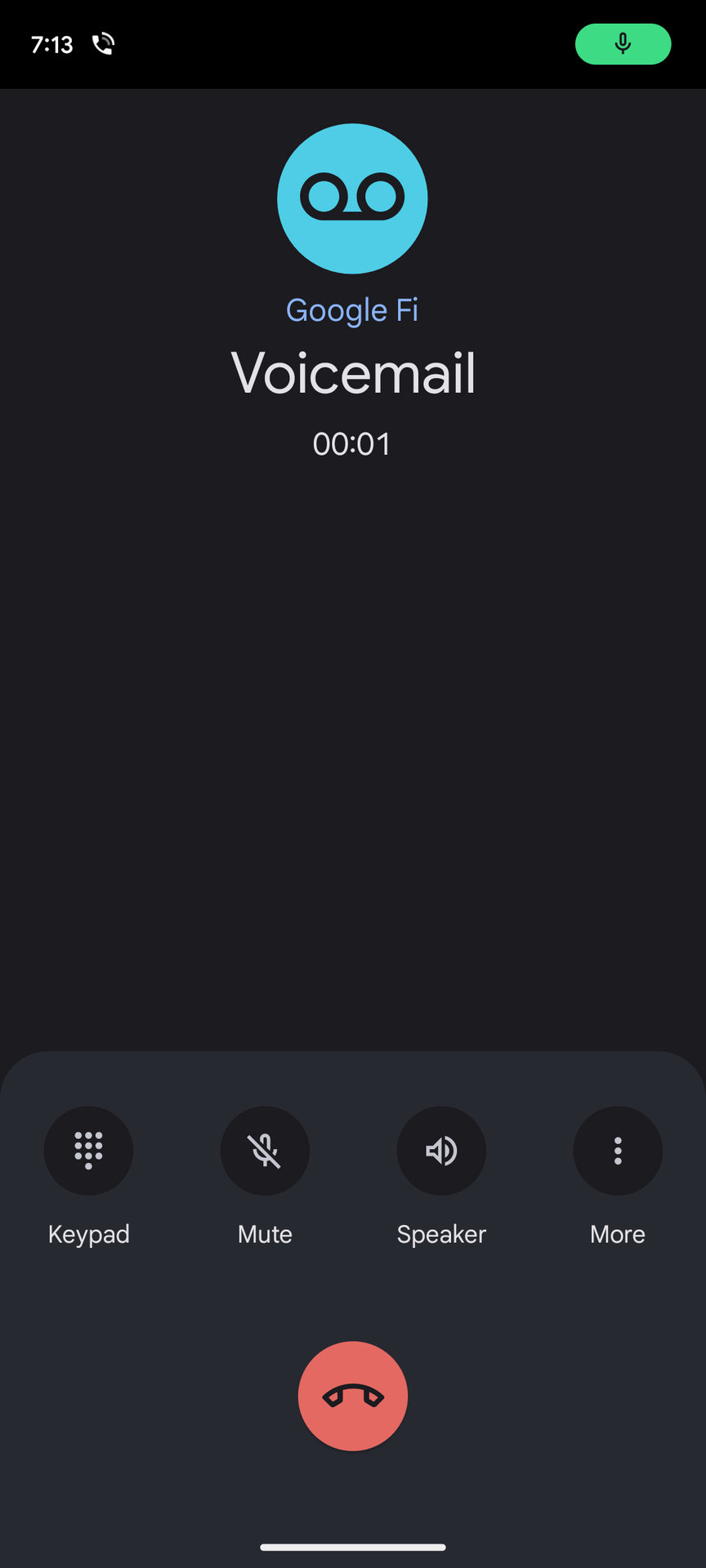
- Enter your PIN and follow the instructions to finish the setup. Hang up, then press and hold the number one again to access your voicemail. ... Editors note: Some instructions in this post were put together using a Google Pixel 7 running Android 14. Remember that some steps might differ, depending on your hardware and software. If youre ready to set up your voicemail on an Android device...